 +1 302 486 0000
  +61 2 5129 0955
  +44 7828 573520
  +44 7828 573520
Connect Zoho SalesIQ to CRM Messaging so your team can handle SMS and WhatsApp from live chats. You need to be an account admin in CRM Messaging and an admin in your SalesIQ portal.
- Open a SalesIQ live chat and Quick reply by SMS or WhatsApp from the CRM Messaging widget, and
- Log incoming SMS/WhatsApp into SalesIQ as live chats automatically.
Who can set this up: Account admin (same as other integrations in Integration Gateway).
What operators need: A published CRM Messaging widget and a published Form Controller named crmMessagingReply on the same SalesIQ brand. They do not need a separate CRM Messaging login.
What you get
| Capability | What happens |
|---|---|
| Reply from SalesIQ | The widget shows the last messages for that phone. Quick reply sends on the same channel and provider as the latest message. No new tab is required for a text reply. |
| Inbound → SalesIQ | When a customer texts or WhatsApps your CRM Messaging number, a SalesIQ chat is created (or the message is appended to an open chat for that phone). |
| Contact sync (optional) | Import SalesIQ contacts, leads, and visitors (with phone or email) into CRM Messaging. |
Inbound messages appear in SalesIQ as visitor messages, prefixed with the channel, for example:
[WhatsApp from +919876543210] Helloor
[SMS from +919876543210] HelloBefore you start
- A Zoho SalesIQ portal with live chat enabled.
- Admin access to CRM Messaging and to your SalesIQ portal (portal admin for inbound authorization).
- For the widget: collect visitor phone numbers in SalesIQ (pre-chat form, People profile, or during chat).
- SMS and/or WhatsApp already working in CRM Messaging, so replies have a number to send from.
Step 1 — Open the integration page
1. Sign in to CRM Messaging as account admin.
2. Go to Integration Gateway.
3. Open Zoho SalesIQ Integration.
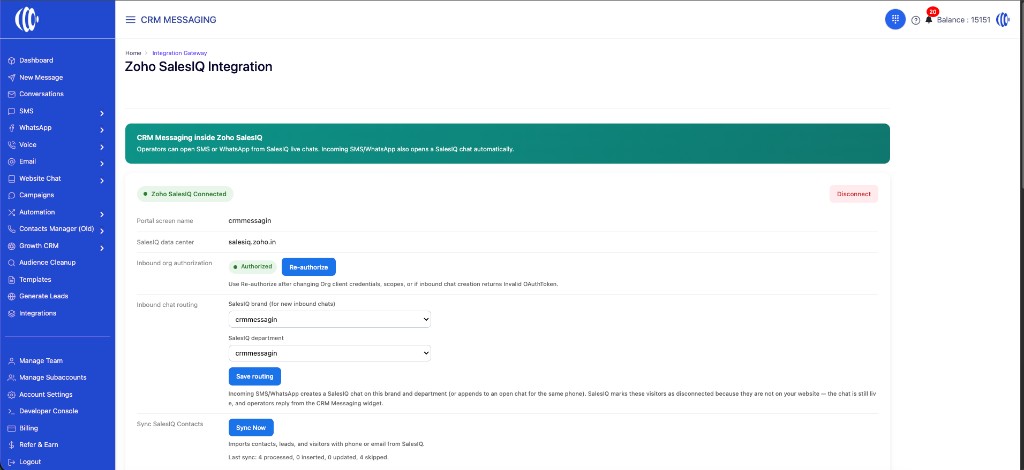
On this page you will find:
- Connect Zoho SalesIQ / Zoho SalesIQ Connected (portal screen name, SalesIQ data center, SalesIQ org ID) and Disconnect
- Inbound org authorization (Authorize / Re-authorize)
- Inbound chat routing (brand + department)
- Sync SalesIQ Contacts
- Your credentials: API Key, Widget webhook URL, and Reply form webhook URL
Step 2 — Connect Zoho SalesIQ
1. Click Connect Zoho SalesIQ.
2. Sign in with the Zoho account that manages your SalesIQ portal.
3. Approve access when prompted.
4. You should return to CRM Messaging and see Zoho SalesIQ Connected, with your portal screen name, SalesIQ data center (for example salesiq.zoho.in), and SalesIQ org ID.
Why connect? SalesIQ often sends only a contact or lead name to the widget, not the phone number. Connecting lets CRM Messaging look up the phone and email, and load your brands and departments so you can choose where new chats open.
To remove the connection later, click Disconnect on the same page.
Step 3 — Allow incoming messages to open SalesIQ chats
Connecting SalesIQ is not enough for incoming messages. Allow CRM Messaging to open chats in your SalesIQ portal. This is a separate approval from Connect Zoho SalesIQ.
1. On the integration page, find Inbound org authorization.
2. If you see Authorize inbound chats, click it.
3. Sign in as a SalesIQ portal admin and approve when Zoho asks for consent.
4. You should return and see status Authorized.
If incoming chats later stop opening, or SalesIQ shows Invalid OAuthToken, click Re-authorize and approve again.
Step 4 — Save inbound chat routing
After SalesIQ is connected and inbound chats are authorized:
1. Under Inbound chat routing, choose:
- SalesIQ brand (for new inbound chats) — where new inbound chats should open
- SalesIQ department — which team receives the chat and operator notifications
2. Click Save routing.
Incoming SMS/WhatsApp creates a SalesIQ chat on this brand and department (or appends to an open chat for the same phone). SalesIQ marks these visitors as disconnected because they are not on your website — the chat is still live, and operators reply from the CRM Messaging widget.
Important: Use the same brand when you install the CRM Messaging widget in SalesIQ (Step 6).
Until brand and department are saved, incoming messages will not create SalesIQ chats.
How inbound routing behaves
| Situation | Result |
|---|---|
| First incoming SMS/WhatsApp from a phone | Creates a new SalesIQ chat on the selected brand and department. |
| Another message while a chat for that phone is still open | Appends to that open chat. |
| Chat was closed / ended | A new chat is created for the next inbound. |
| Visitor shows as disconnected | Expected. The person is not on your website. The chat is still live — reply from the CRM Messaging widget. |
CRM Messaging does not send from SalesIQ’s native composer. Operators use Quick reply in the CRM Messaging widget, or open See full conversation for the full thread (including files).
Step 5 — Operator notifications for inbound SMS/WhatsApp
When a new inbound message creates a SalesIQ chat, CRM Messaging alerts available operators in the department you selected.
New messages on an already open chat appear as a visitor reply. SalesIQ notifies operators assigned to that chat the same way as a normal visitor message.
Operator checklist:
- Keep SalesIQ open (web or desktop app).
- Enable chat notifications: SalesIQ Settings → Operator → Notifications.
- Use the same brand and department saved in Step 4 so chats land in the right queue.
CRM Messaging cannot push SalesIQ mobile alerts directly. Notifications are delivered by SalesIQ when an operator is online in the portal.
Step 6 — Install the widget and reply form (one-time)
Copy both URLs from Your credentials on the integration page. Do not share the API key.
Widget
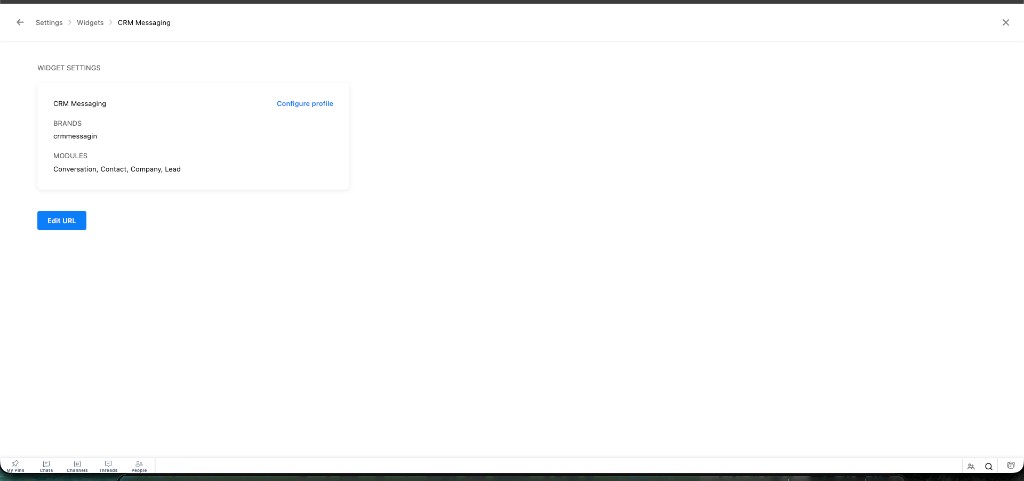
1. In Zoho SalesIQ, go to Settings → Developers → Widgets → Add.
2. Name it CRM Messaging.
3. Select the same brand you chose for inbound routing.
4. Enable modules: Conversations, Contacts, Leads, and Companies.
5. Platform: Webhooks. Paste the Widget webhook URL (use Copy webhook URL).
6. Click Publish on the widget.
Reply form — required for Quick reply
7. In SalesIQ go to Settings → Developers → Form Controllers → Add.
8. Name it exactly crmMessagingReply. Platform: Webhooks. Paste the Reply form webhook URL (use Copy form URL).
9. Publish the form controller.
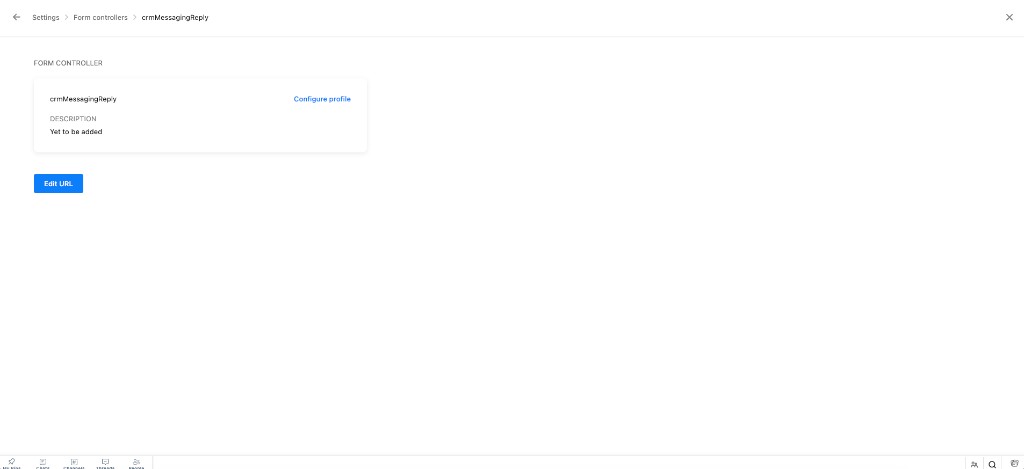
Without crmMessagingReply, Quick reply cannot send. See full conversation does not need the form controller.
The widget appears in the chat sidebar when an operator has an open live chat (including chats created from inbound SMS/WhatsApp). It does not appear on standalone contact Profile pages — open the contact’s Conversations tab and use the widget from an active chat instead.
Step 7 — Sync SalesIQ contacts (optional)
If you want SalesIQ people in your CRM Messaging contact list:
1. With SalesIQ connected, under Sync SalesIQ Contacts click Sync Now.
2. Wait until the status line shows completion, for example:
Last sync: 4 processed, 0 inserted, 0 updated, 4 skippedImports include contacts, leads, and visitors that have a phone or email. Records already in CRM Messaging, or already linked to another app such as Zoho Desk, may show as skipped.
Reply via SMS or WhatsApp from SalesIQ
1. Open a live chat in SalesIQ, including chats created from inbound SMS/WhatsApp.
2. In the right sidebar, open the CRM Messaging widget. The last messages for that phone are shown there — no new tab.
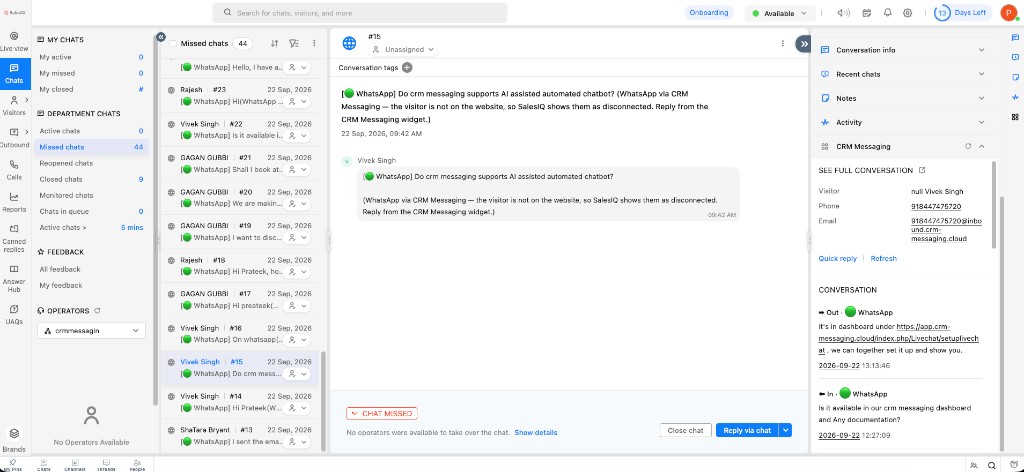
3. Click Quick reply to answer on the same channel and provider as the latest message. Type a message, then press Send.
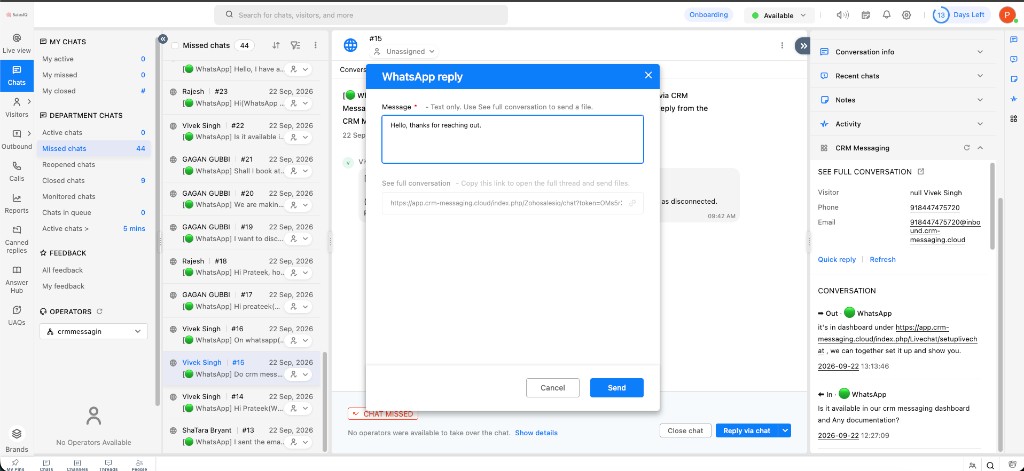
SalesIQ does not hand attachments to a widget form. Send files from See full conversation.
4. Click the link icon next to See full conversation at the top of the widget to open the full thread in a new tab. Inside the Quick reply form, SalesIQ allows no clickable links, so the same thread URL is shown in a read-only See full conversation field to copy.
5. The reply goes out through CRM Messaging. Tap Refresh if the new line does not appear in the widget immediately.
If no phone appears, add it on the visitor’s SalesIQ profile or pre-chat form, then reopen the chat.
From SMS / WhatsApp → SalesIQ
1. Customer sends SMS or WhatsApp to your CRM Messaging number.
2. If Steps 2–4 are complete, a SalesIQ chat opens on the saved brand and department (or the message is appended to an open chat for that phone).
3. The visitor may show as disconnected. That is expected — they are not on your website. The chat is still live.
4. The operator uses Quick reply in the widget to answer on the same channel.
Setup checklist
- ☐ Integration Gateway → Zoho SalesIQ Integration
- ☐ Connect Zoho SalesIQ (Connected — screen name, data center, org ID)
- ☐ Inbound org authorization = Authorized (portal admin)
- ☐ Save routing — brand + department
- ☐ Publish the CRM Messaging widget on the same brand (Widget webhook URL)
- ☐ Publish Form Controller
crmMessagingReply(Reply form webhook URL) - ☐ Operators online in SalesIQ with notifications enabled
- ☐ Test: send WhatsApp/SMS into the account → chat appears in SalesIQ
- ☐ Test: Quick reply from the widget → customer receives SMS/WhatsApp
Quick troubleshooting
| Issue | What to do |
|---|---|
| Can’t find Connect Zoho SalesIQ | Sign in as a CRM Messaging account admin and open Integration Gateway → Zoho SalesIQ Integration. If it is still missing, contact support. |
| Can’t authorize incoming chats | Sign in to Zoho as a SalesIQ portal admin, then click Authorize inbound chats. If that option is missing, contact CRM Messaging support. |
| Incoming messages are not opening SalesIQ chats | Confirm you are Connected and Authorized, then Save routing for a brand and department. Confirm the SMS or WhatsApp arrived in CRM Messaging first. If it still fails, click Re-authorize and test again. |
| Visitor shows disconnected | Expected for inbound SMS/WhatsApp. They are not on your website. Reply from the CRM Messaging widget. |
| Chat created but operators not alerted | Keep SalesIQ open, enable Settings → Operator → Notifications, and confirm the saved department. CRM Messaging cannot push mobile alerts itself. |
| Quick reply cannot send | Publish a Form Controller named exactly crmMessagingReply, platform Webhooks, with the Reply form webhook URL. See full conversation does not need it. |
| Cannot attach a file from Quick reply | SalesIQ does not pass files into a widget form. Open See full conversation and send the file there. |
| Sent line missing in the widget | Tap Refresh in the widget. |
| No phone in the widget | Finish Connect Zoho SalesIQ (Step 2). Add a phone on the SalesIQ visitor or contact, then reopen the chat. |
| Widget missing in live chat | Confirm the widget brand matches inbound routing and click Publish again. |
| Widget not on contact Profile tab | Expected. Open Conversations on that contact, then use the widget from the chat sidebar. |
| Sync shows many skipped | Those records may already exist under another integration, already match CRM Messaging, or have no phone/email in SalesIQ. |
| Invalid OAuthToken on inbound | Click Re-authorize under Inbound org authorization, approve in Zoho, then send another test message. |
For help, contact CRM Messaging support or your account administrator.


